Track
Track
 Login
Login


Refresh Box setting (Clear NVRAM) - HD enabled Box
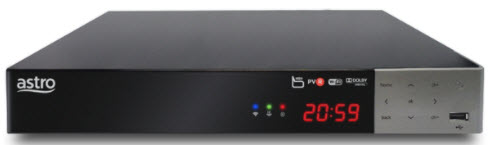
Byond Box (DMT 5)
STEP 1
Switch on the power for your box and make sure that the adapter's power light is on.

STEP 2
Put the box on standby mode.
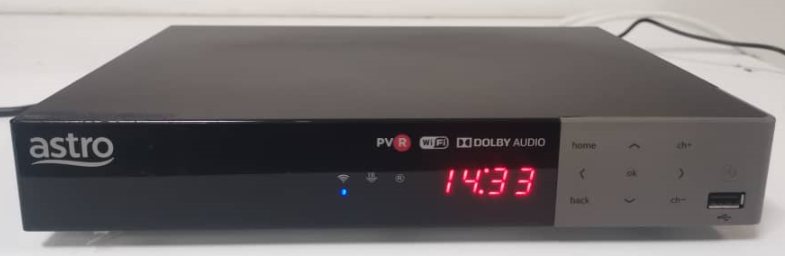
STEP 3
Press and hold the Home button on the box.
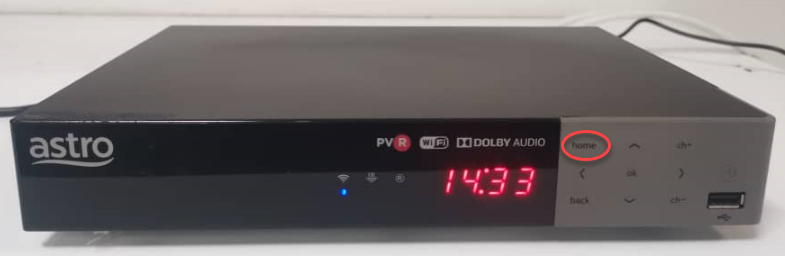
STEP 4
Wait until "boot" appear on the front panel and released.
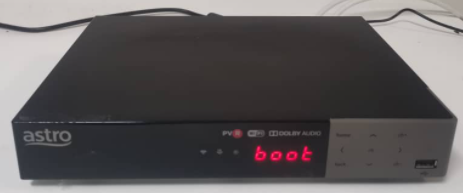
STEP 5
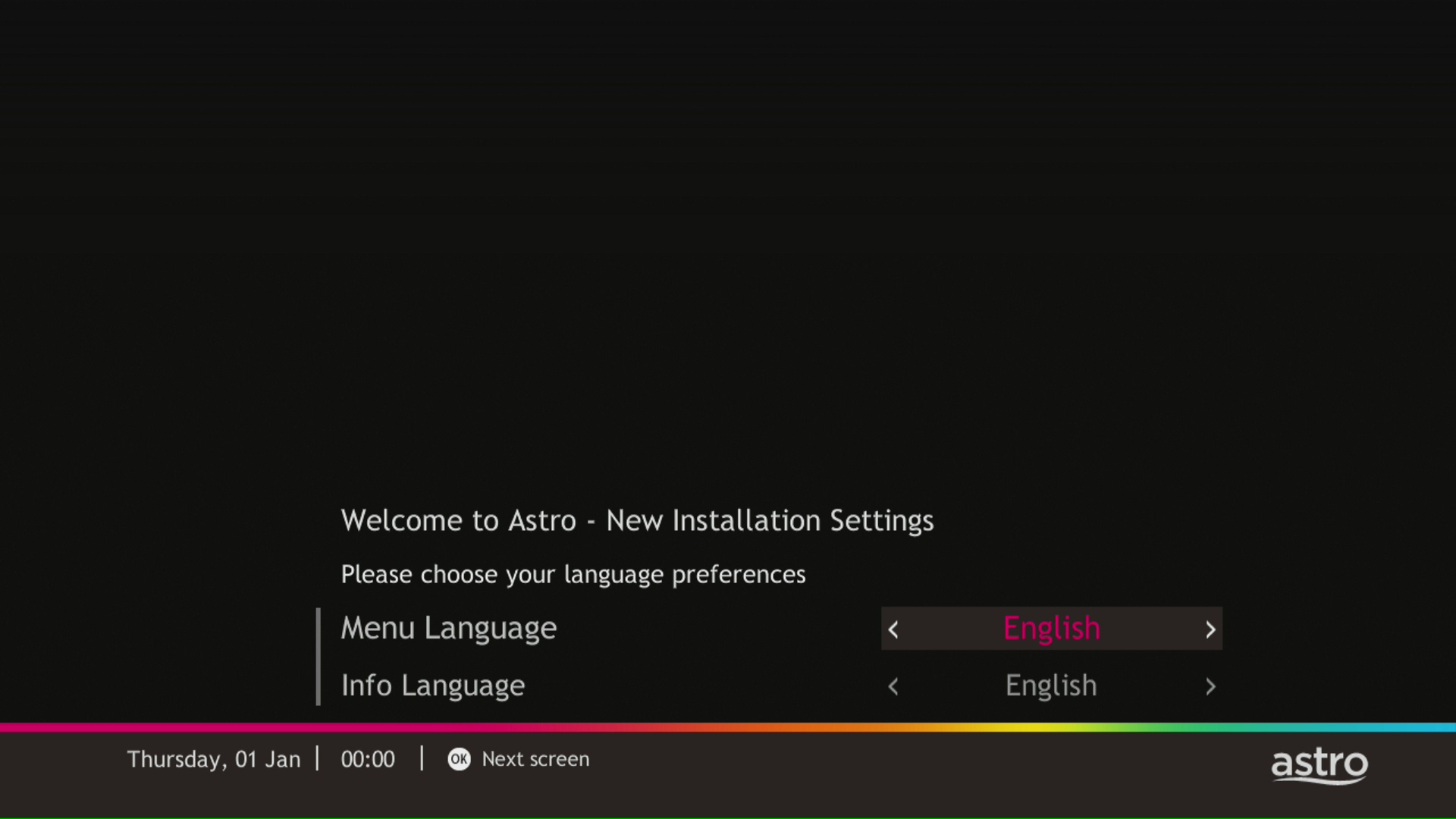
New Installation Settings page will appear.
Click here for the guides to complete the setup.
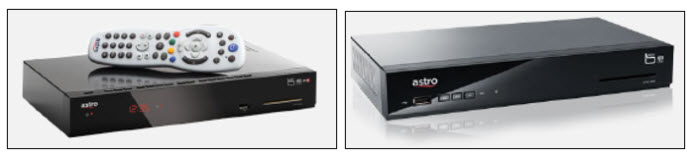
Byond Box (DMT 4)
STEP 1
Switch off the power of your box and ensure the adapter�s power light is off.

STEP 2
Switch on the power of your box and ensure the adapter�s power light is on.
STEP 3
Press and hold the Ch+ and Ch- keys on the box simultaneously when the "boot" message appears on the front panel.
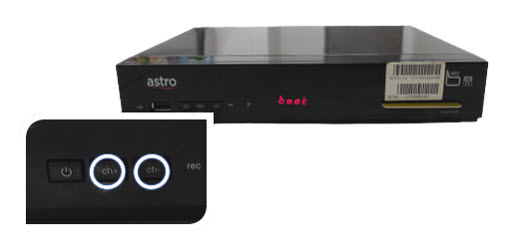
STEP 4
Wait until the "Clr" message appears on the front panel, then release the Ch+ and Ch- keys.
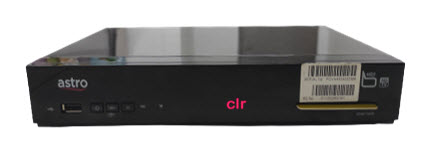
STEP 5
New Installation Settings page will appear.
Click here for the guides to complete the setup.

Byond Box (Zapper)
STEP 1
Ensure your box is on standby mode. (Red light on box's front panel).
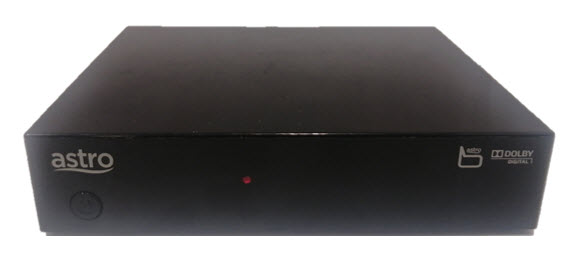
STEP 2
Press and hold the Standby button. Wait until the LED at front panel change from red to green for 3 times, then release the button.
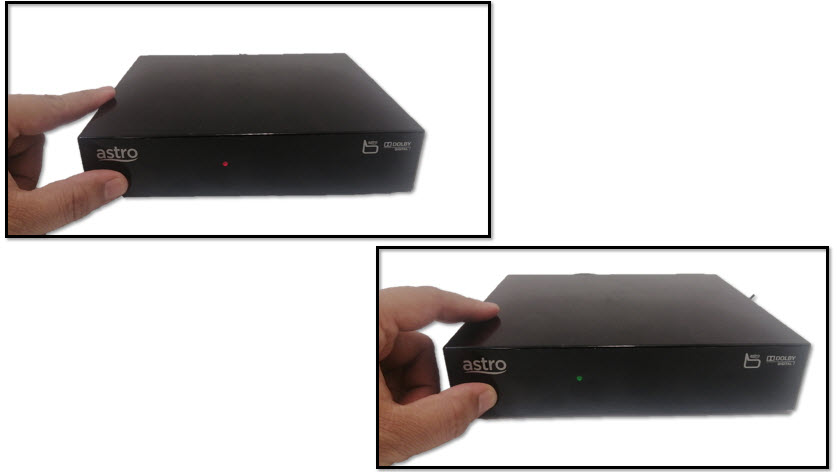
STEP 3
New Installation Settings page will appear.
Click here for the guides to complete the setup.
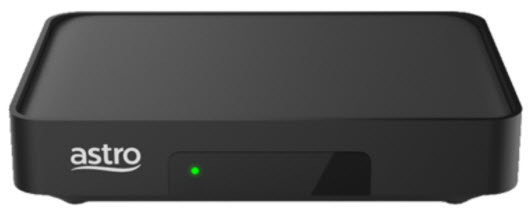
Byond Box (New Zapper)
STEP 1
Switch off the power of your box and ensure that the adapter�s power light is off.
STEP 2
Switch on the power of your box and ensure that the adapter's power light is on.
STEP 3
Keep pressing the 'Power' button until the Startup Option screen appears.
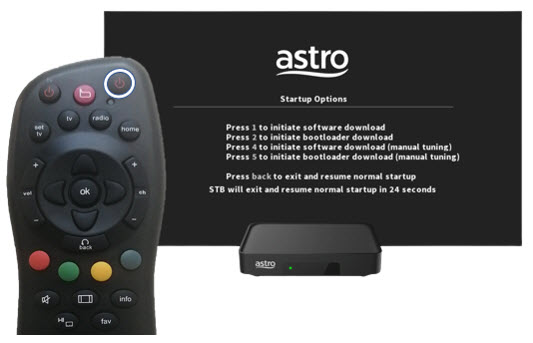
STEP 4
Press "369" on the remote control to trigger refresh box setting menu.
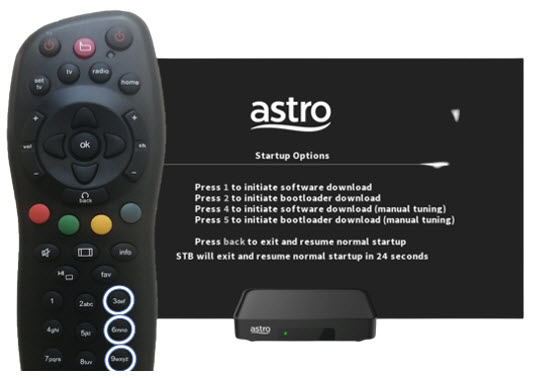
STEP 5
Press "OK" to proceed. The box will be refreshed to the original setting.
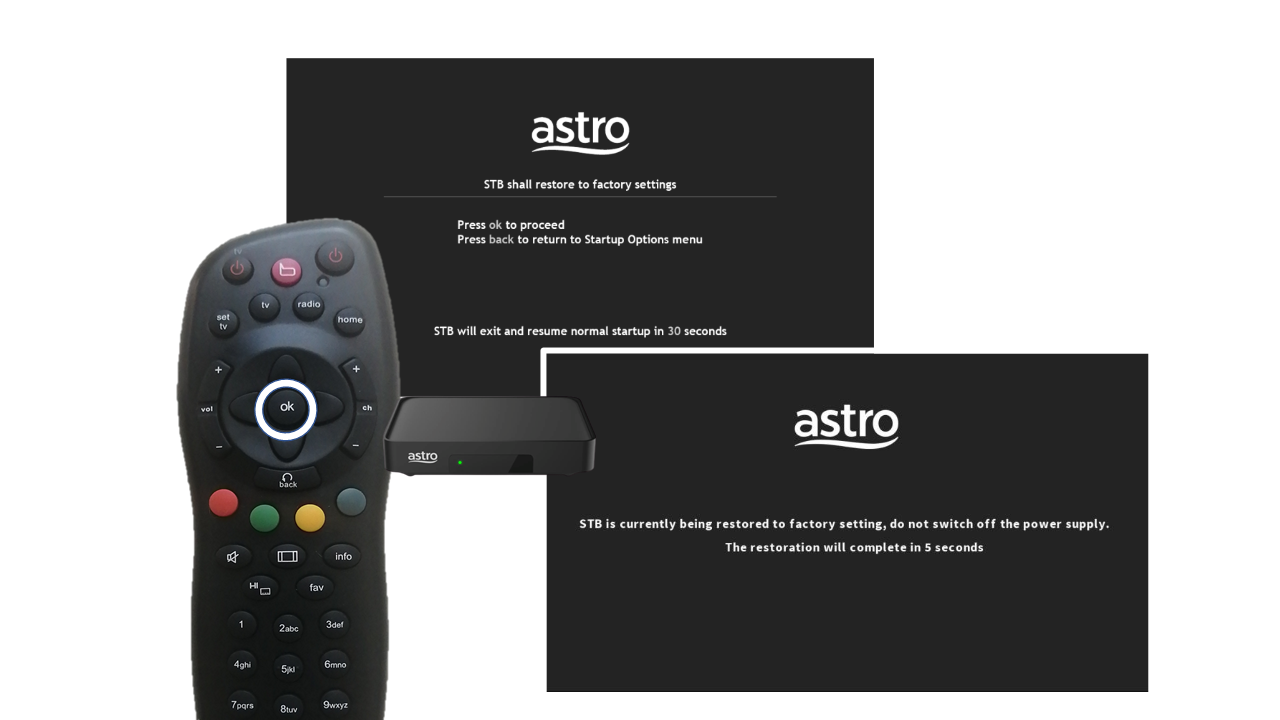
STEP 6
New Installation Settings page will appear.
Click here for the guides to complete the setup.
Similar Articles